If you recently replaced your home Wi-Fi router or updated your Wi-Fi password, your security cameras and video doorbells may disconnect and go offline. This step-by-step guide will walk you through reconnecting your device to your home wireless network using the A3 Smart Home mobile app. With Bluetooth recovery, you can get your cameras back online quickly without needing a full re-installation.
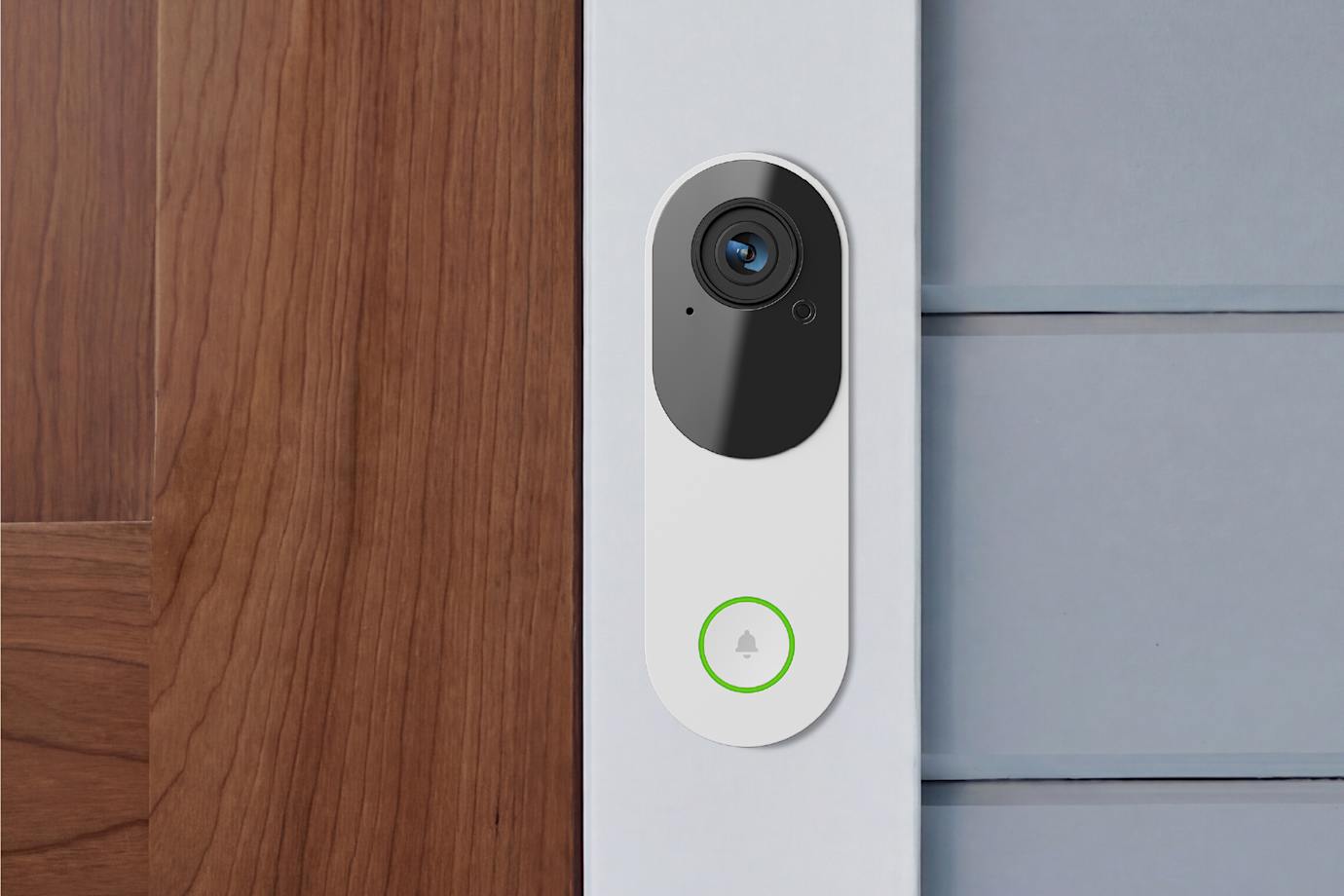
Supported Devices:
This Bluetooth reconnection process works for the following devices:
- Wired Doorbell Camera (ADC-VDB775)
- Battery Doorbell Camera (ADC-VDB781B)
- Premium Outdoor Camera (ADC-V730)
- Premium Battery Camera with Solar (ADC-V731B)
- Wifi Smart Chime (ADC-W114C)
Before You Begin
To ensure a smooth setup, make sure you have the following ready:
- Your smartphone with the latest version of the A3 Smart Home app installed.
- Bluetooth and Location Services turned ON in your smartphone's settings.
- Your phone should be within 15 feet of the camera with a clear line of sight.
- Your home Wi-Fi network name (SSID) and network password.
Step 1: Open the App & Start the Reconnection Wizard
Open the A3 Smart Home app on your mobile device, log in, and choose one of the following paths to start the troubleshooting assistant:
A) From the Alerts Tab: If your system detects the device is offline, tap the Issues tab directly on the home screen.
B) From the Video Section (Recommended):
1. Tap Video in the menu
2. Select your offline camera
3. Tap Troubleshoot
4. Select Reconnect Device
5. Tap Scan
C) From the Device Management Section:
1. Tap More
2. Tap Manage Devices
3. Select your offline camera
4. Tap the three dots (...) on the right
5. Go to Device Settings
6. Select Reconnect Device
Step 2: Prepare Your Camera
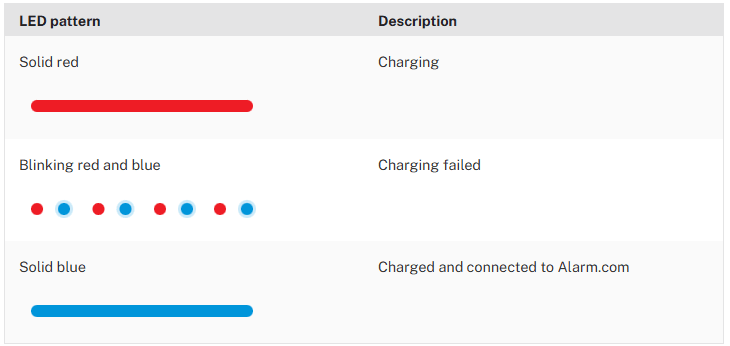
1. Make sure your video device is powered on. For battery-operated cameras, verify they have a sufficient charge.
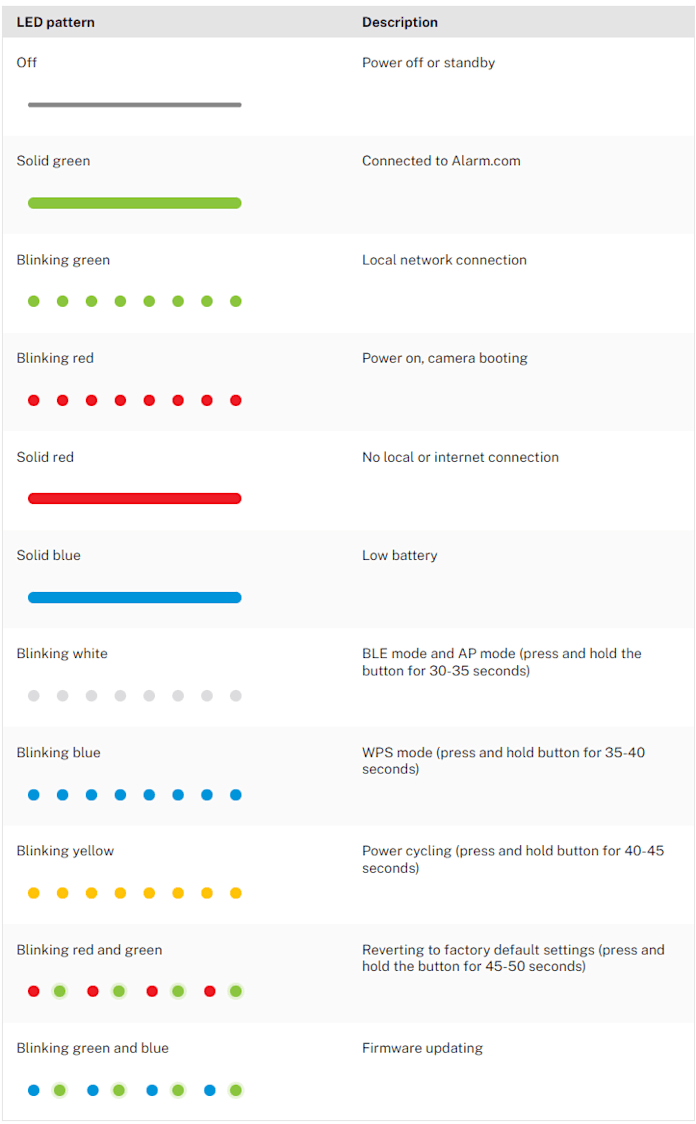
2. Check the LED light on the front of the camera. It needs to be blinking white to show it is ready to pair.
3. Reset the camera, if the light is NOT blinking white, by pressing and holding the camera's Reset/WPS button (button locations vary by model) for 3-15 seconds until the light begins flashing white.
Step 3: Scan and Connect
1. Tap Scan within the A3 Smart Home app.
2. Grant the app permission to use Bluetooth if prompted by your phone.
3. Keep your phone close to the camera while it searches for the camera. Once the device is found, choose your home Wi-Fi network from the on-screen list. (If your network isn't listed, tap Manual Setup to type in your network name and password.)
4. Enter your Wi-Fi password and tap Connect.
Step 4: Complete Setup
1. Stay close to the camera while the app finishes verifying the connection.
2. Tap Done once the setup is complete. Your video device will update and return online shortly.
LED Reference Guide
Troubleshooting Tips
- The "Reconnect" option isn't visible: Try closing and completely reopening the A3 Smart Home app, or verify that your camera model is supported.
- Bluetooth scanning fails: Double-check that Bluetooth and Location Services are active on your phone, bring your phone closer to the device, and remove any physical obstructions. You can also try restarting both your phone and the camera.
- The Wi-Fi connection fails: Ensure your router is sending a strong 2.4 GHz or 5 GHz signal. You can also power cycle your internet router and the camera, or try using an alternative connection method, like WPS or Access Point (AP) mode, if supported.
- Camera stays offline after success: Pull down on the app screen to refresh, or wait a few minutes for the status to sync. As a last resort, a factory reset can be done by holding down the Reset button for 10 to 20+ seconds until the LEDs flash red and green, though you must delete the device from your app account before reinstalling it.