Installing Your Premium Battery Camera with Solar
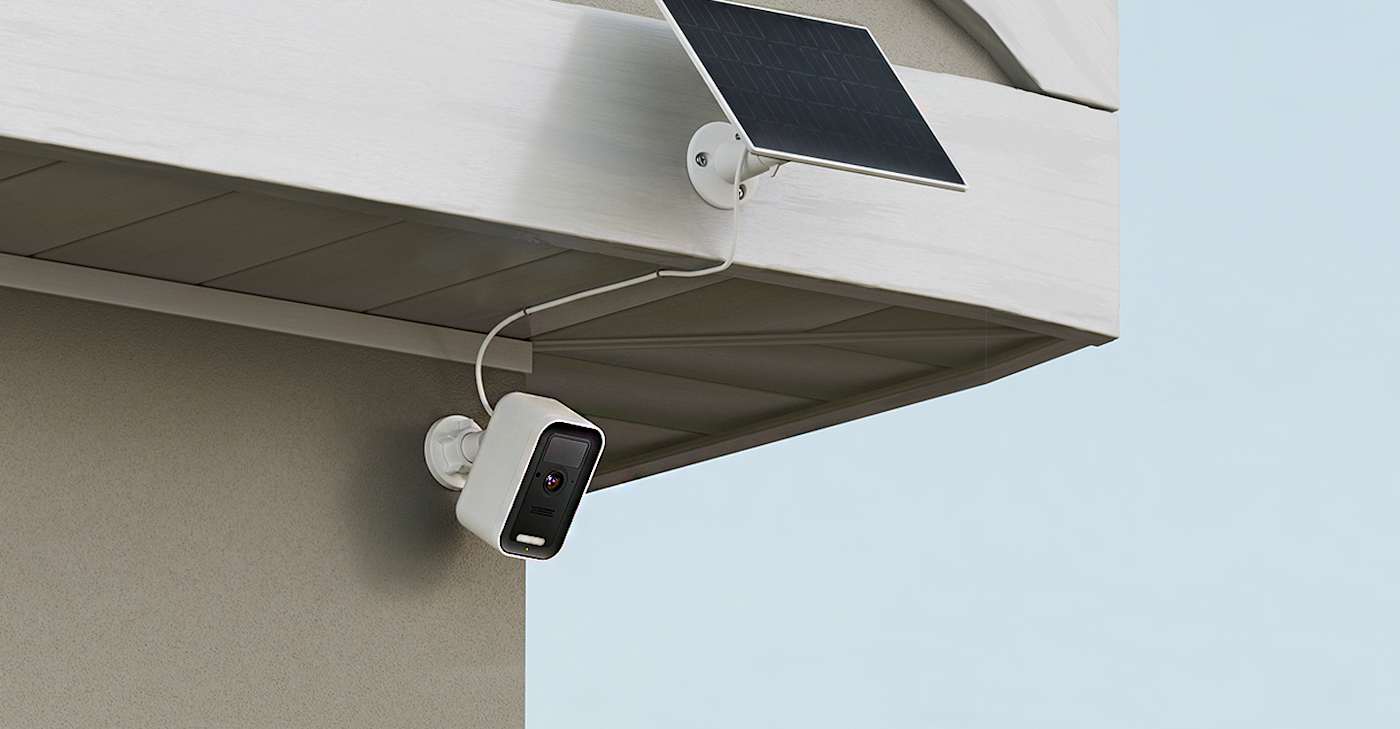
Premium Battery Camera with Solar Installation Guide PDF
Camera Installation Parts:
- ADC-V731B Camera
- ADC Universal Battery Pack
- USB-C Cable
- Installation Card
- Wall Mount
- Wall Plate
- Screws (3)
Tools Required:
- Drill
- Wi-Fi (2.4 or 5 GHz) connection to broadband Internet (Cable, DSL, or Fiber Optic) internet.
- A computer, tablet, or smartphone with Wi-Fi is required if the router does not have the Wi-Fi Protected Setup (WPS) mode. AP mode is the recommended method to connect the camera to the network.
Note: Some internet service providers disable the WPS feature on customer routers.
Pre-Installation Instructions
The following steps should be taken prior to installation:
1. Unbox the unit. Carefully remove the camera and all included components from the packaging.
2. To remove the battery pack:
- Press the oval button located on the bottom of the camera to release the housing.
- Set the back housing aside and locate the black notch at the bottom of the battery pack.
- Press the notch inward and slide the battery pack downward to remove it.
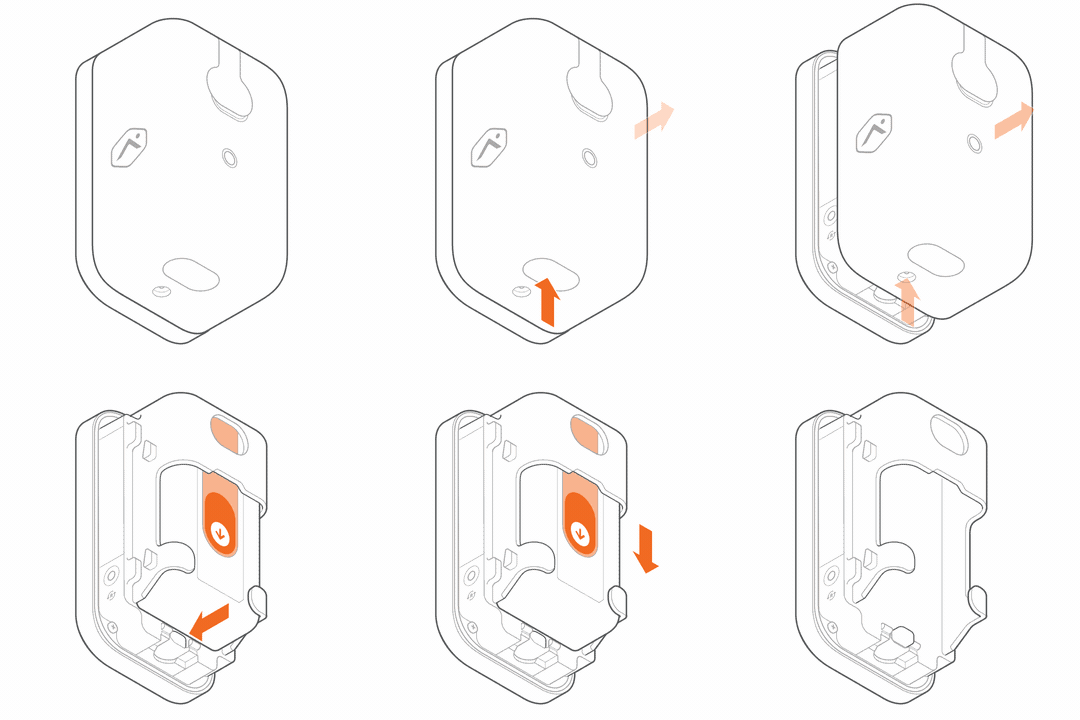
3. To reinsert the battery pack:
a. With the battery pack removed, carefully peel off any protective film covering the battery pack.
b. Align the battery pack with the cradle and slide it back into place. Make sure you hear the notch click to confirm it is securely inserted.
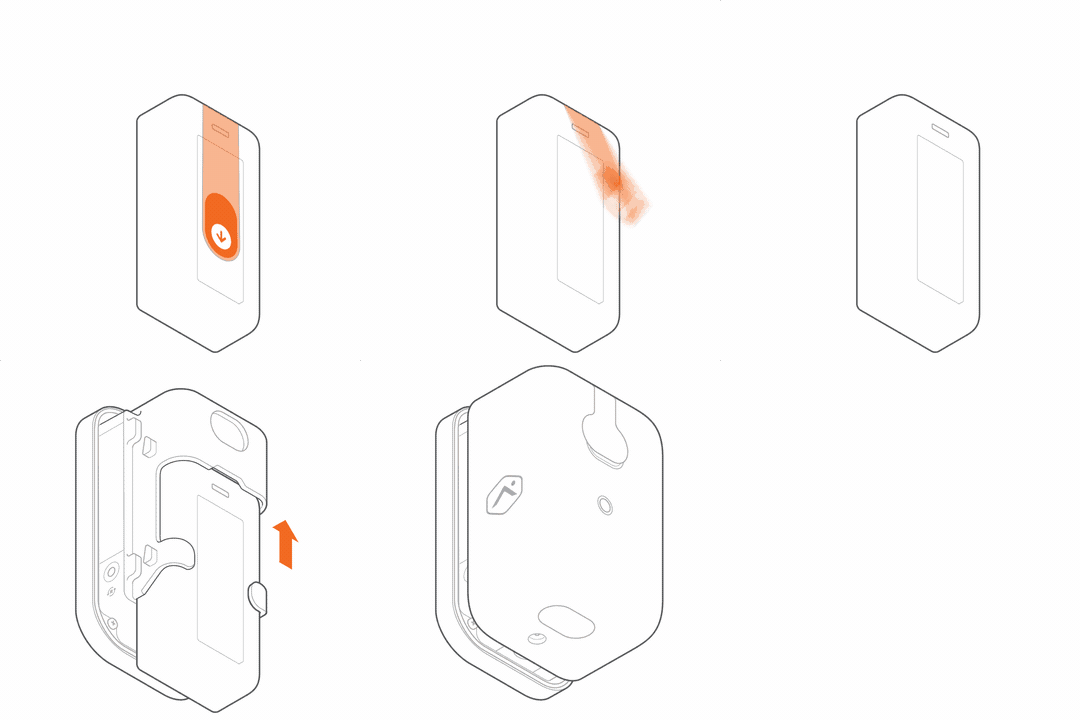
4. Verify the LED indicator on the front of the camera goes into pairing mode (blinking white).
a. When the camera turns on, it begins blinking red to indicate the device is booting.
b. If the camera is new or has not been previously associated with a network, the LED should begin blinking white to indicate it has entered pairing mode. If the LED is blinking white, replace the housing by pressing the housing together with the camera body, and proceed to the next section of the guide.
c. If the LED light does not blink white, press and hold the multi-purpose button located on the side of the camera (accessible once the housing is removed) for three seconds, or until the LED begins blinking white. Once the LED starts blinking white, release the button and proceed to the next section of the guide.

Connect the Camera to the Wi-Fi Network
The Premium Battery Camera with Solar can be connected to the Wi-Fi network using AP or WPS modes.
AP MODE
To ensure a sufficient Wi-Fi signal, complete the following steps with the camera near its final location but prior to mounting.
1. Power on the camera. The camera’s LED will begin to blink white. If the LED is not white after two minutes, press and hold the WPS/Reset button and release when the LED begins to blink white (about three seconds).
2. Connect to the camera’s Wi-Fi network. On an internet-enabled device, connect to the Wi-Fi network ADC-V731B (XX:XX:XX) where XX:XX:XX is the last six characters of the ADC-V731B’s MAC address, which is located either on the camera or the packaging.
3. Access the camera setup page. On the same device, open a web browser and enter http://v731binstall.com or 192.168.1.1 in the URL field. Follow the on-screen instructions to add the ADC-V731B to the Wi-Fi network. During this process, the LED will briefly turn red before blinking green. The LED will turn solid green once the connection is successfully completed.
4. Once the LED is solid green, enroll the camera to the account using the steps in Enroll the camera to the account.
WPS MODE
To ensure sufficient Wi-Fi signal, complete these steps with the camera near its final location but prior to mounting.
1. Open the camera’s housing. Press the oval button located on the bottom of the camera to release the housing.
2. Enter WPS pairing mode. Press and hold the multi-purpose button located on the side of the camera (accessible once the housing is removed) for six seconds, or until the LED begins blinking blue. Once the LED starts blinking blue, release the button to enter WPS mode.
3. Activate WPS mode on the router. The camera will begin to connect to the Wi-Fi network. The LED will be solid green when the connection is complete.
4. Once the LED is solid green, enroll the camera to the account by visiting www.alarm.com/addcamera.
Enroll the Camera to the Account
To enroll the camera using the A3 Smart Home Mobile App:
1. Log in to the A3 Smart Home Mobile App. The username and password for the account are required to login.
2. Select More.
3. Select Add Device.
4. Select Video Camera.
5. Select Enter MAC Address, then enter the camera's MAC address.
6. Select Install for the camera on the Device Found page.
7. Enter a device name, then select Next.
8. Follow the on-screen instructions to finish adding the camera. The installation progress displays on the screen.
Once the installation is complete, move the camera to its final location. Prior to installing, verify the received signal strength using the A3 Smart Home Mobile App. Once the signal strength has been verified, install the camera with the included hardware.
Optional: Camera Mounting
Important: Prior to mounting, verify the received signal strength using the A3 Smart Home Mobile App. Once the signal strength has been verified, install the camera with the included hardware.
The Premium Battery Camera with Solar features standard ¼” tripod screw threading, allowing compatibility with a variety of mounting options. A wall plate and wall mount are included in the box for flush surface mounting. Alternatively, the camera can be placed directly on a flat surface or used with a variety of third-party mounts and stands.
Follow the instructions below to mount the camera to a flush surface:
1. Choose the mounting location. The camera should be mounted at least eight feet above the ground on a flat surface (e.g., a wall or ceiling).
2. Verify there are no nearby obstructions that could interfere with the camera’s performance, particularly night vision.
3. Verify the location minimizes glare and avoids capturing unwanted motion (e.g., swaying trees or vehicle traffic), as this may negatively impact battery life.
4. Mark and drill mounting holes. Use the included mounting plate to mark the desired locations for the mounting screws.
◦ If mounting to drywall: Drill two 3/16” holes and insert the included wall anchors.
5. Attach the mounting plate. Align the camera’s mounting plate with the drilled holes. Use the included screws to securely fasten the plate to the mounting surface.

6. Secure the mount to the plate. Align the mount with the mounting plate following the printed instructions on the plate. Turn the mount until it clicks securely into place.

7. Attach the camera to the tripod screw.
a. Remove the optional small security screw from the packaging and insert it into the bottom of the camera to prevent the camera and back housing from separating.
b. Screw the camera onto the tripod screw threading until it is tight and securely fastened.
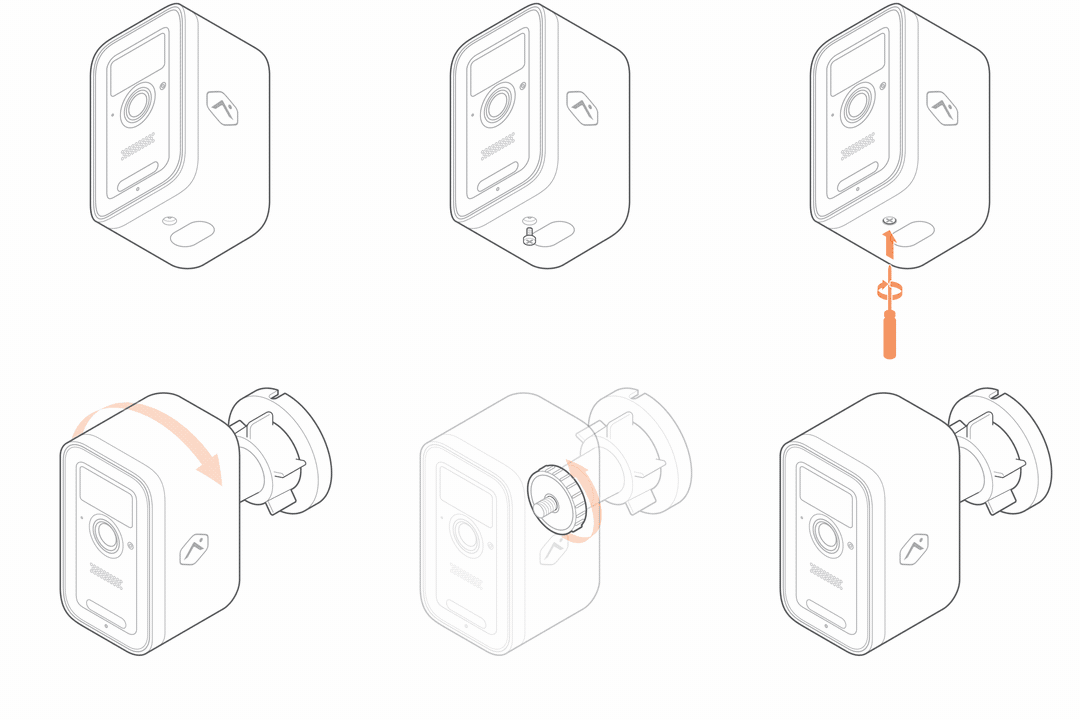
8. Adjust the camera angle. Loosen the collar on the mount to adjust the ball joint. Move the camera to point toward the area you want to monitor. Once the camera is positioned correctly, tighten the collar to secure it in place.
Optional: Solar Panel Installation
Installation Parts
- Wall Anchors (2)
- Screws (2)
Tools Required
- Drill with 3/16" drill bit (optional for wood mount)
- Screwdriver with #2 Phillips bit
Wall Mount Installation
The solar panel features standard ¼" tripod screw threading, allowing compatibility with a variety of mounting options. A wall mount is included in the box for flush surface mounting. Alternatively, the solar panel can be used with a variety of third party mounts and stands. Follow the instructions below to mount the solar panel to a flush surface.
Note: It is recommended to mount the camera first, then find a location within nine feet of the camera that gets three or more hours of direct sunlight a day to mount the solar panel. The rest of the instructions assume that the camera is already mounted.
1. Choose the mounting location. The solar panel needs to be mounted within nine feet of the camera.
2. Verify there are no nearby obstructions that could cause shadows on the solar panel.
3. Mark and drill mounting holes. Use the included mount to mark the desired locations for the mounting screws. ◦ If mounting to drywall, drill two 3/16" holes.
4. Attach the mount. Align the solar panel's mount with the drilled holes. Use the included screws to securely fasten the mount to the mounting surface.
5. Attach the solar panel to the tripod screw.
6. Screw the solar panel onto the tripod screw threading until it is tight and securely fastened.
7. Adjust the solar panel angle. Loosen the collar on the mount to adjust the ball joint. Move the solar panel to align it according to your location below. Once the solar panel is positioned correctly, tighten the collar to secure it in place.
Align the Solar Panel
The solar panel needs to be in a sunny location that gets three or more hours of direct sunlight per day with no shadows.
Note: A properly oriented solar panel can charge the camera's battery up to twice as fast as a misaligned one.
For the Northern Hemisphere: The solar panel needs to face south and be tilted to 45 degrees.
Connect the Solar Panel to the Camera
Stretch the cord from the solar panel to the camera. If there is any excess cable hanging, wrap it around the back side of the solar panel and use the clips to secure it. Once the cord is aligned properly and the extra is wrapped out of the way, locate the USB-C port on the back of the camera. Open the rubber dust cover and firmly insert the USB-C connector into the camera.
Verify the Camera is Charging
To verify the camera is charging using the A3 Smart Home Mobile App:
1. Log in to the A3 Smart Home Mobile App.
2. Select Activity.
3. Select the Filter Icon in the top right to filter events, if desired.
4. In Activity, verify the camera shows a change in its power source.

Important: This message in Activity does not indicate the camera's current charging state (i.e., charging or not charging), only a change in the power source.
Review Camera Angle
While still logged in to the A3 Smart Home Mobile App, open the camera's live view to verify its field of view was not unintentionally altered while the solar panel was being installed, and also to check that the solar panel is not in the camera's field of view.
Maximizing Battery Life
Important: The camera will only charge when its battery is within a safe temperature range of approximately 32°F to 113°F (0°C to 45°C).
• Position the solar panel optimally to maximize charging efficiency. • The camera will not charge over 80% on solar power to extend the lifetime of the battery.
• The Premium Battery Camera with Solar goes into a low power mode until the PIR sensor detects motion. Once the trigger is activated, the camera comes online and processes the video. The more triggers, the faster the battery will be consumed. When using the solar charging solution, it is recommended that the triggers are tuned to eliminate as many false positives as possible.
Other Device Install Guides
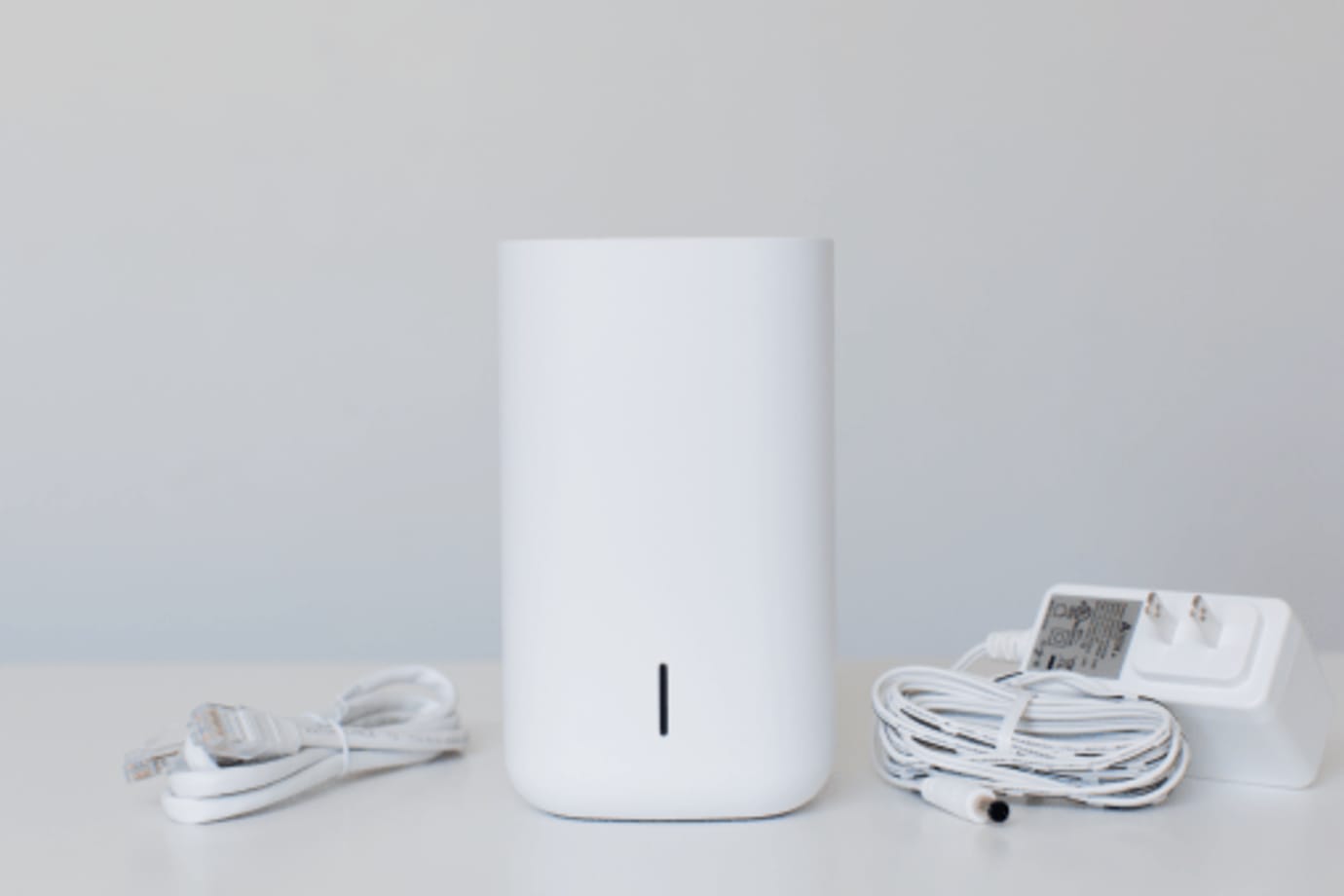
Your Stream Video Recorder enables you to have 24/7 video storage from the cameras included in your security system. You can connect up to 8 video cameras to record continuously, and view your video recordings from your mobile app, or locally from a TV or computer monitor.
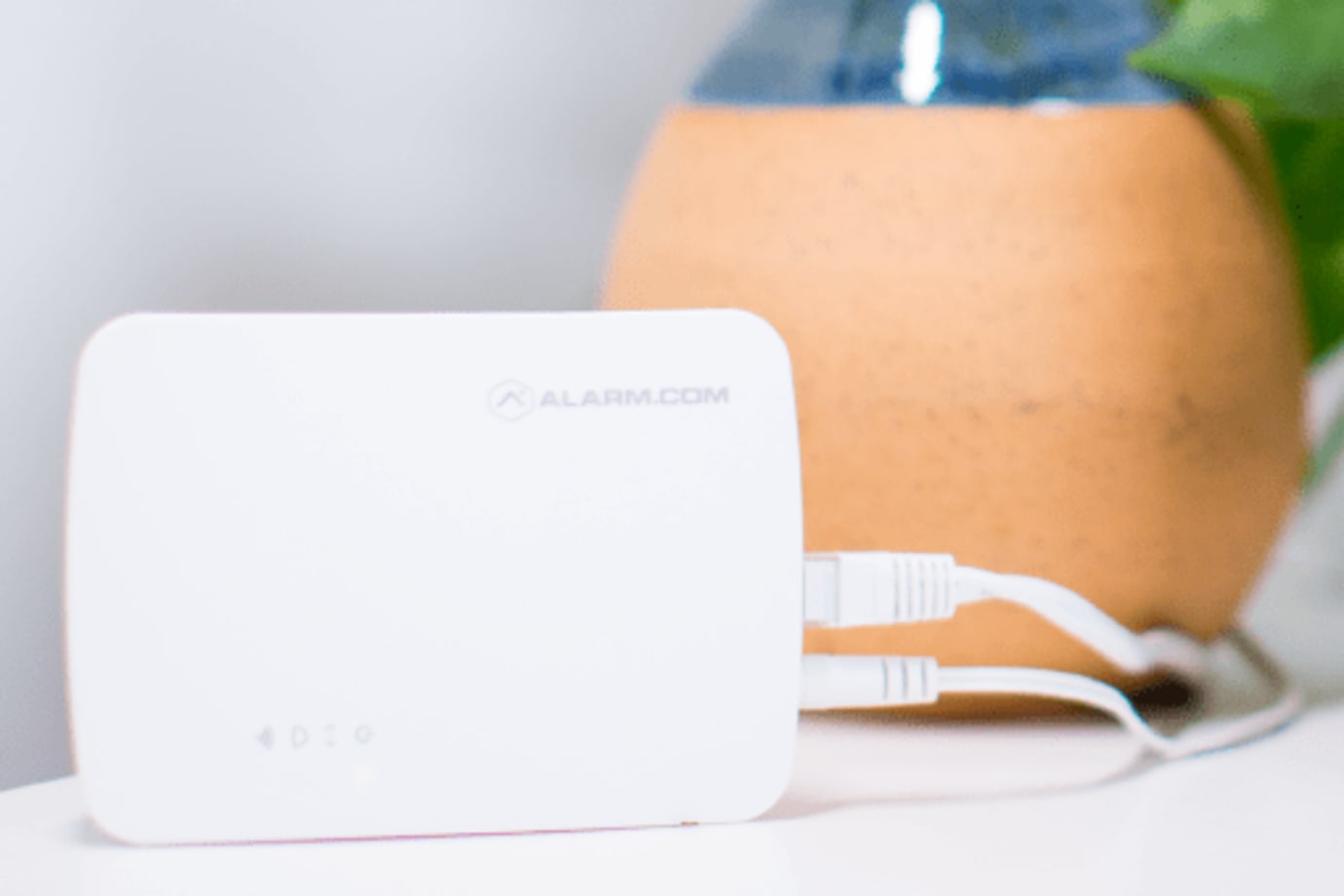
The Smart Gateway provides a dedicated Wi-Fi network for the indoor cameras in your A3 Smart Home system.
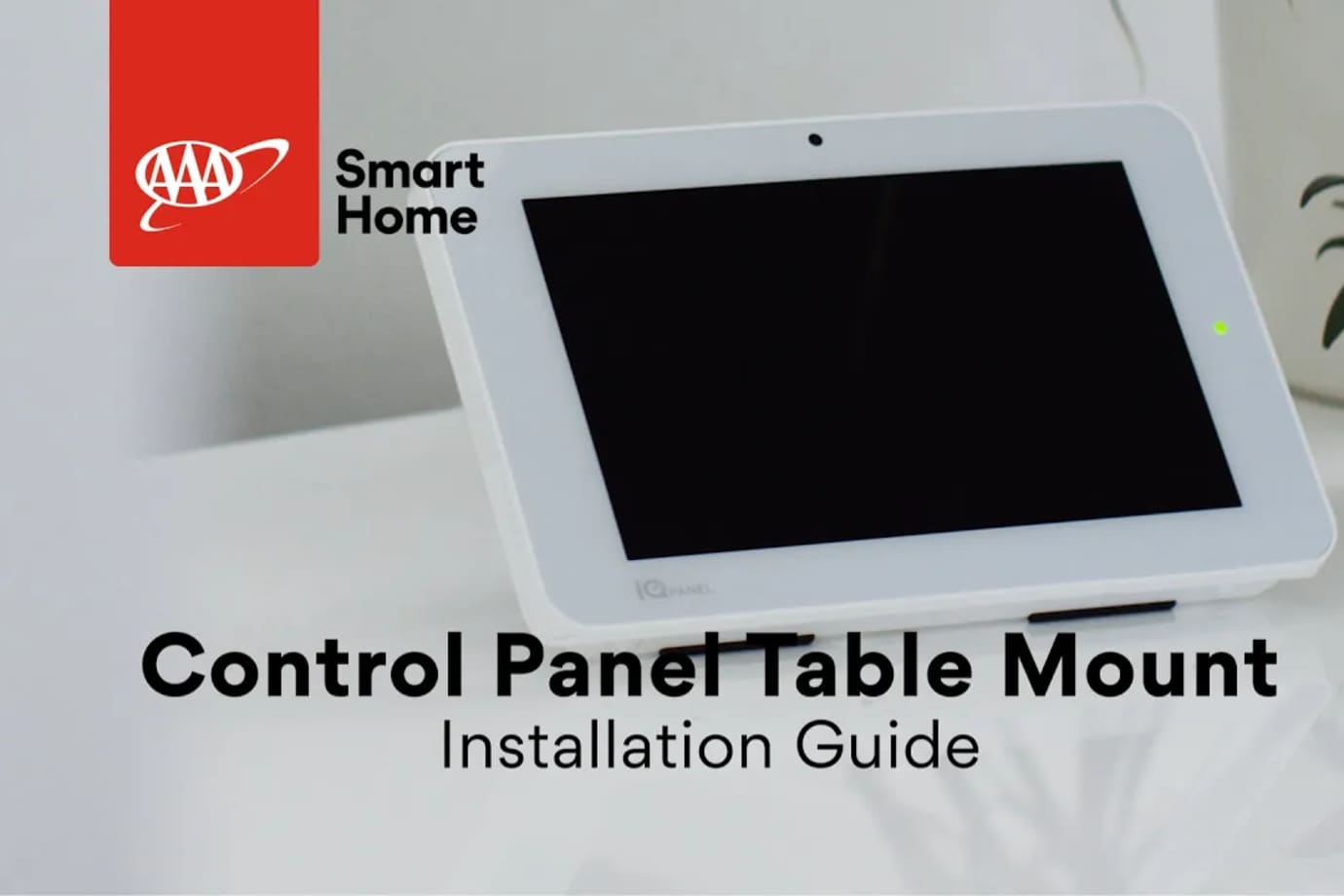
Before setting up your AAA Smart Home control panel, make sure you have all the components needed and you have read over the documentation.
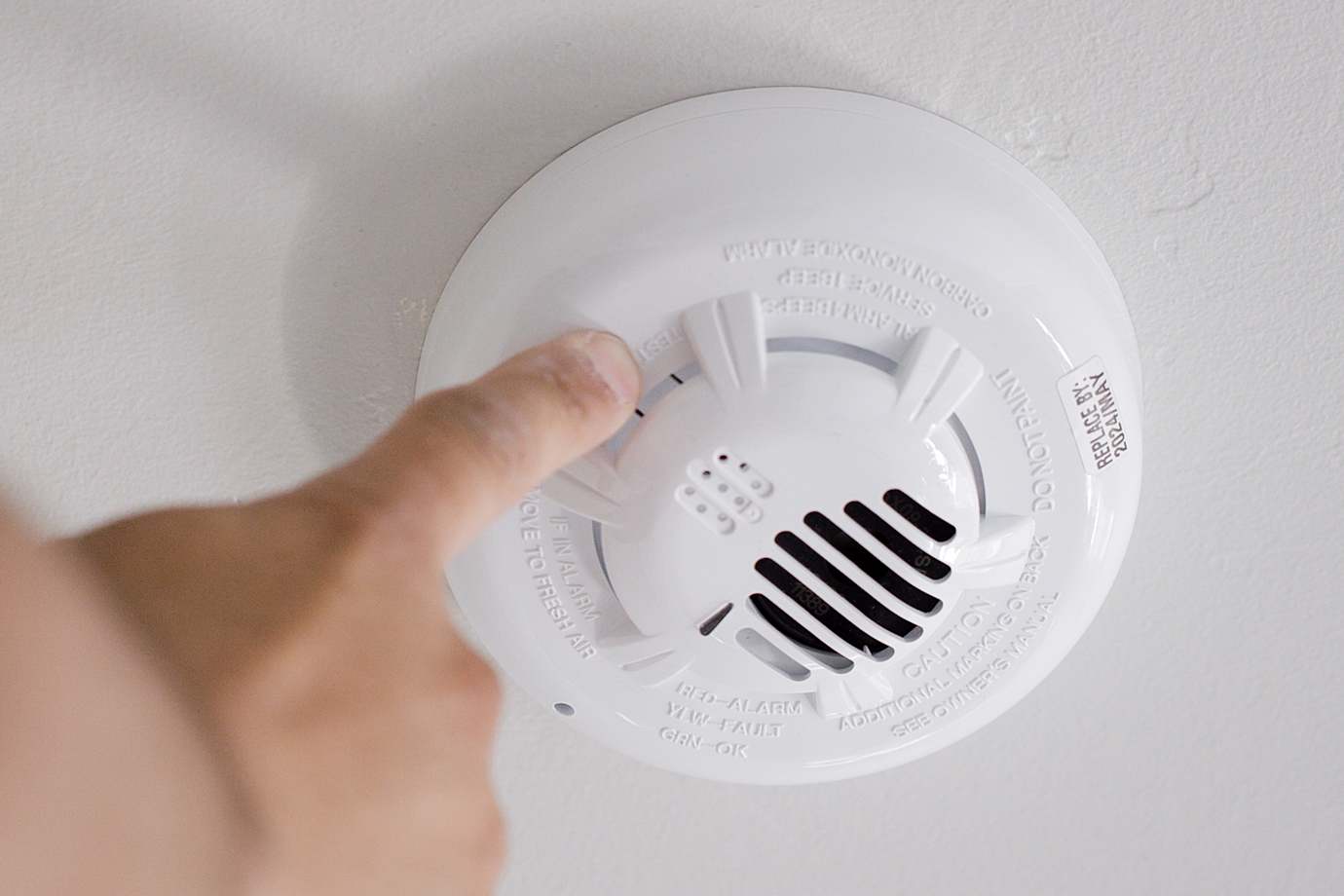
Your carbon detector alerts you to the presence of carbon monoxide in your home.

Your Lamp Plug lets you turn a lamp on and off, or dim it (if the lamp has a dimming bulb), using your control panel or mobile app. It plugs into any standard outlet.